Turboflows: Build Powerful IRC Bot Automations Without Code
Hi, I'm Christina from the xShellz team 👋 In this guide I'll walk you through Turboflows - the most powerful thing your turborg can do. By the end you'll be able to build your own from scratch and have the AI build one for you.
What is a Turboflow?
A Turboflow is a little automation your turborg runs inside your IRC channels. The idea is simple:
WHEN something happens, DO these steps.
That's it. "When someone joins, greet them." "When a message says !quiz, start a trivia game." "Every morning at 9am, post a standup reminder." Each of those is one flow.
Under the hood a flow is a small node graph - a trigger, then a chain of steps ("nodes") that your turborg walks from top to bottom. You can branch, call the AI, keep score, hit a webhook, kick a spammer... all without writing code.
Turboflows are available on every plan, including Free.
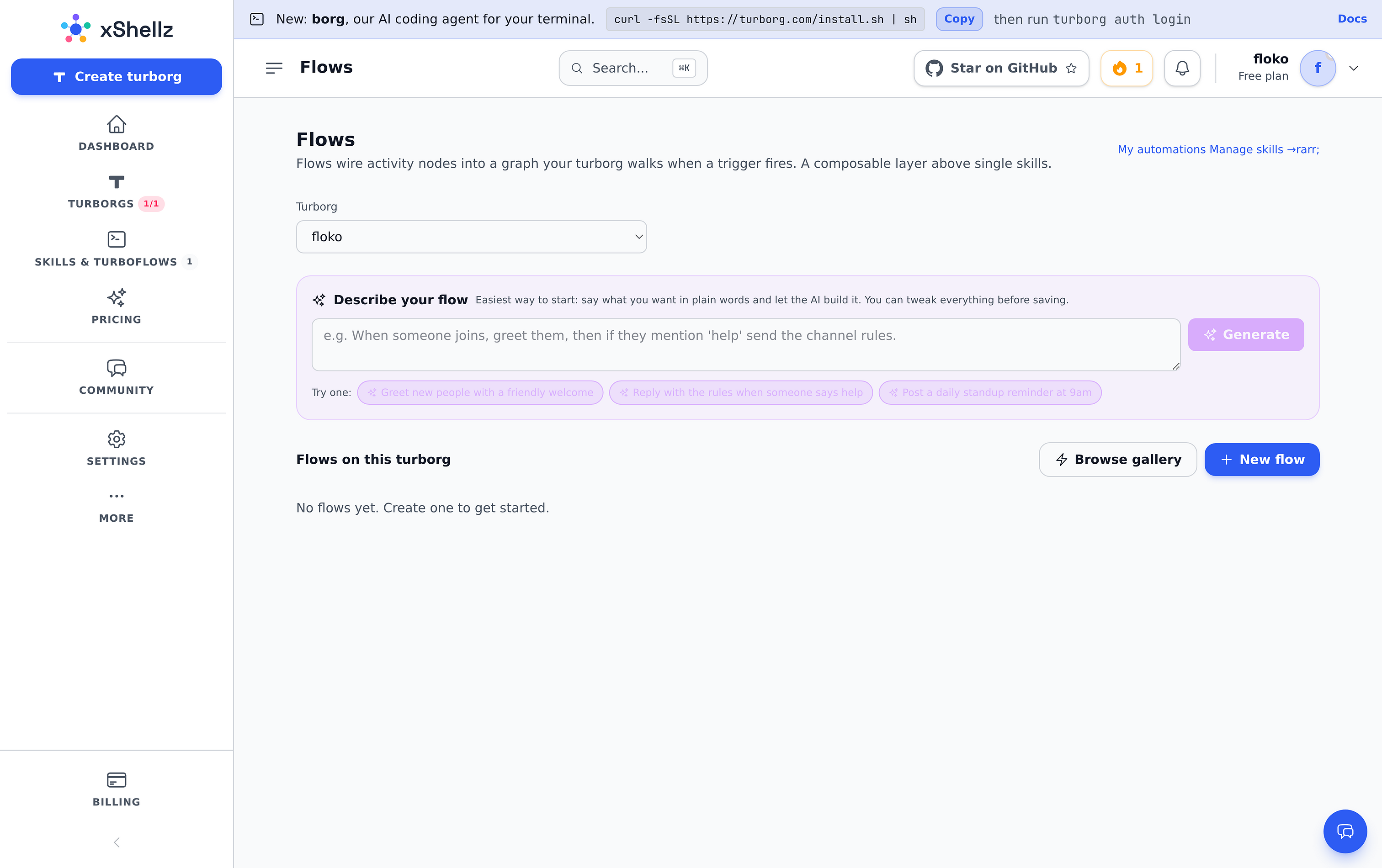
You'll find them in the web app under Turborgs → Flows.
The fastest way: let the AI build it

Open the Flows page, pick your turborg from the dropdown, and look at the purple "Describe your flow" box at the top. Type what you want in plain English, for example:
When someone joins, greet them, then if they mention "help" send the channel rules.
Press Generate. In a few seconds the visual editor opens with a complete flow drafted for you. Nothing is saved yet - you review it, tweak anything you like, and hit Save flow when you're happy.
There are one-click starter prompts under "Try one:" if you want to see what it can do.
This AI drafting draws from your account's daily AI budget (more on that in my AI Features guide), so if you ever see "budget exhausted", give it a little while or upgrade your plan.
Building one by hand
Prefer to build it yourself? Click New flow. Every flow has two parts: a trigger and a graph.

1. Pick a trigger - when it runs
| Trigger | Runs when... | You provide |
|---|---|---|
| Command | someone types !yourword in a channel |
the word (no !), e.g. greet |
| On event | someone joins, leaves, is kicked, changes nick, or the topic/mode changes | which event |
| On match | a message matches a pattern (regex) | the pattern, e.g. (?i)\bhello\b |
| On schedule | a timer fires | an interval like 30m / 1h, or cron like 0 9 * * * |
| On webhook | an outside app calls your flow's private URL | (the URL is generated for you after you save) |
You can also limit a flow to specific Channels (comma-separated, e.g. #lobby, #help) - leave it blank to run everywhere.
Tip: a Command trigger only matches a single word. If you want to react to several words like
!quiz,!answerand!score, use an On match trigger such as^!(quiz|answer|score)\binstead.
2. Build the graph - what it does
On the canvas you'll see a green start node. Add steps from the "Add a step" palette, then connect the start node to your first step by clicking its output dot and then the next step. Click any step to configure it in the side panel. Here are the building blocks:
| Step | What it does |
|---|---|
Send a message (say) |
posts a message to the channel or a user |
Send a notice (notice) |
a quieter one-off message |
Ask the AI (llm) |
asks the AI something and uses its answer in later steps |
Branch on a condition (if) |
continue only if a condition is true (has a yes and no path) |
Route on a value (switch) |
send the flow down different paths based on a value |
Set a variable (setvar) |
remember a value under a name for later |
Get a variable (getvar) |
recall a value you saved earlier |
Increment a counter (incr) |
add to a saved counter - perfect for karma, points, scores |
Channel action (effect) |
kick, ban, mute, op, voice, set a mode or the topic |
Call a webhook (webhook) |
call an outside URL to fetch live data or notify another app |
Set data fields (set) |
stash one or more values for later steps |
Stop (stop) |
end the flow here |
Anywhere you type text you can drop in placeholders that fill themselves in:
{user}- who triggered it{channel}- the room{text}- the full message (on a match trigger){args}- the words after a!command- ...plus any variable you save with
setvar/incr.
When you're done, the Validation panel tells you if anything's missing. Hit Save flow and your turborg picks it up within a few seconds.
Flows can remember things
Steps like setvar, getvar and incr give your flow a memory that survives restarts - scores, counters, seen-lists, notes. Each flow gets its own private storage namespace (named after the flow), so flows never trip over each other's data.
You can see and clear everything a flow has stored from the Storage page - I cover that in my Storage guide.
A tiny example - a "thanks" counter (Karma):
- Trigger: On match
(?i)\b(thanks|thank you|thx|ty)\b - Step 1 - Increment a counter: key
karma-{user}, intok - Step 2 - Send a message:
{user} now has {k} karma.
A real, complete example: AI Quiz
This is one of our official flows - a full trivia game in a single flow (so all the steps share one score namespace). Trigger: On match ^!(quiz|answer|score)\b.
!quiz→ Ask the AI for a 4-option question (and to never reveal the answer) → setvarquiz-q-{channel}→ say the question with "Answer with: !answer <A/B/C/D>".!answer→ getvar the current question → Ask the AI to judge the answer (it replies onlyCORRECT/WRONGand never leaks the answer) → if correct, incrquiz-score-{user}and announce the new score.!score→ getvarquiz-score-{user}and report the player's points.
You don't have to build this - just install it from the gallery (next section) and read how it's wired.
Don't start from scratch: the gallery
Click Browse gallery on the Flows page to see ready-made flows. Ones with an official badge are built and maintained by us.

There are 40+ already, including:
- Welcome / farewell: AI Welcome, Farewell, First-Timer Welcome
- Moderation: Flood Lockdown, Link Quarantine, Caps Guard, Auto-Op Trusted
- Fun & games: AI Quiz, Karma Counter, Random Fact, Trivia
- Utilities: Todo lists, Scratchpad notes, Password Generator, Unit Converter, World Clock, QR Code, URL Shortener
- Live data (via webhooks): Coin Price, Top 10 Crypto, Live Weather, Stock Quote, Exchange Rates, GitHub Repo Stats
Hit Install on any of them and a copy is added to your turborg, ready to edit. Made something great yourself? Use Publish on your flow to share it with the community.
Good to know (limits)
- Up to 50 flows per turborg; up to 100 steps and 200 connections per flow.
- Flows themselves are free on every plan. The only thing that varies by plan is your daily AI budget - used by any Ask the AI step and by AI flow-drafting. Free gets a small daily allowance; Starter/Pro/Max get progressively more.
- For live external data, use a webhook step (not the AI) - it's exact and doesn't spend AI budget.
That's Turboflows! Start with Describe your flow, install a couple from the gallery to see how they're built, and you'll be automating your channels in minutes.
Ready to try it yourself? Create your free turborg → - no card needed.